
01
Use a trend
Motion transfer templates load a prepared clip and photo roles. Preview the scene and choose Recreate to set it up.
Motion transfer AI
Use a photo for your character and a video for the movement. Choose a template or upload your own clip.
Create freelyCreations from this workspace appear here.
Find your next video idea. Choose a ready-made trend and make it your own.
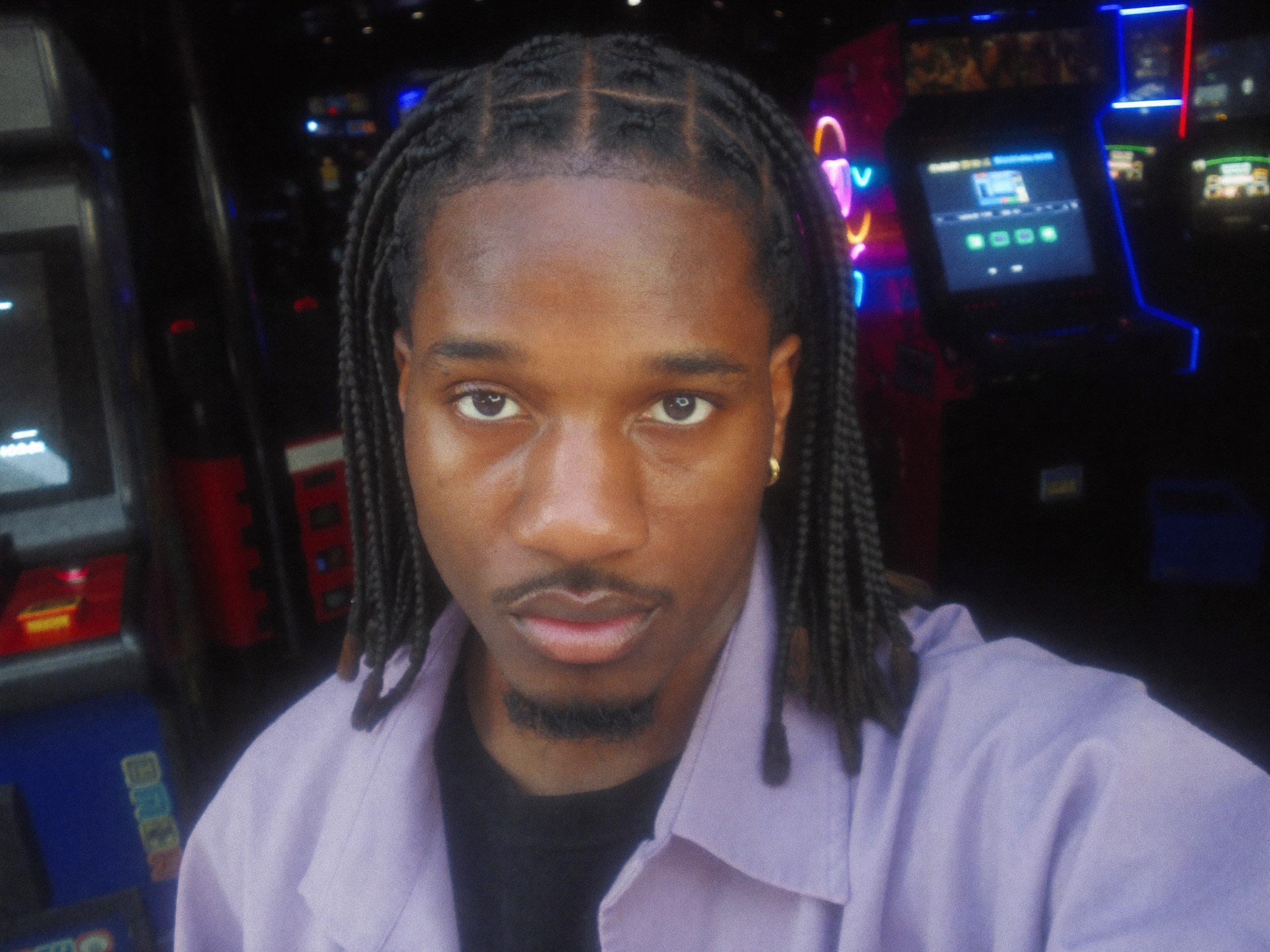
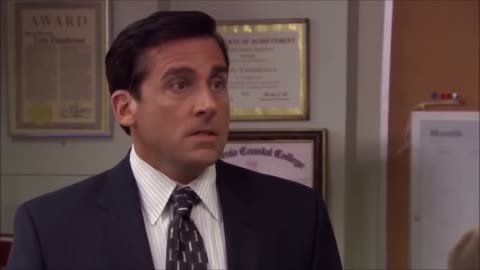
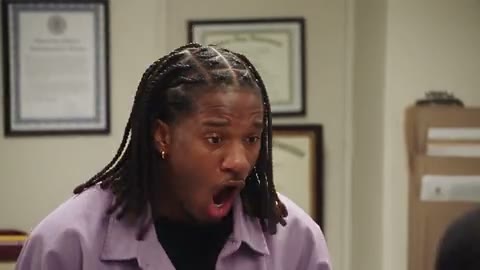
A motion transfer AI video generator combines a character photo with a reference clip to make a new video. Your photo guides the subject’s appearance, while the reference provides an action, its pace and the framing around it. Motion transfer AI gives you a visual performance to begin with, so you can choose a gesture or routine before deciding who appears in the scene. The final motion transfer video can vary with the model, photos and settings. In MT Video, browse a prepared template or upload a performance of your own. Previewing a template lets you see the scene before loading its photo roles; using your own motion transfer video gives you more control over the action you bring. The comparison shown here is a community example, not a video generated with MT Video.
Illustrated settings are examples; available controls depend on the selected model.
Step 1
Choose a motion transfer template and select Recreate, or upload your own clip. Add the photos shown in the workspace. To replace a template, choose Exit template first.
Step 2
Review the model, available settings and credit estimate. Photo requirements can vary by motion transfer template.
Step 3
Sign in to generate your motion transfer video. Play and download the result in My creations.
Start with a prepared scene or a performance of your own.
01
Motion transfer templates load a prepared clip and photo roles. Preview the scene and choose Recreate to set it up.
02
With your own motion transfer video reference, you choose the gesture, walk or dance and add your character photos.
03
Check the face, hands and movement. If a limb looks unclear, try a wider photo or a cleaner reference.
These community examples illustrate possible scenes; results vary with your inputs and model.
Pop performance
01
Pair a portrait with a wave or greeting and include the moving arms in the photo.
02
Choose a template and add your characters to its photo roles.
03
For full-body motion transfer, choose a photo with the legs and feet visible.
Choose a clear photo and a readable clip; the illustrations show useful framing.
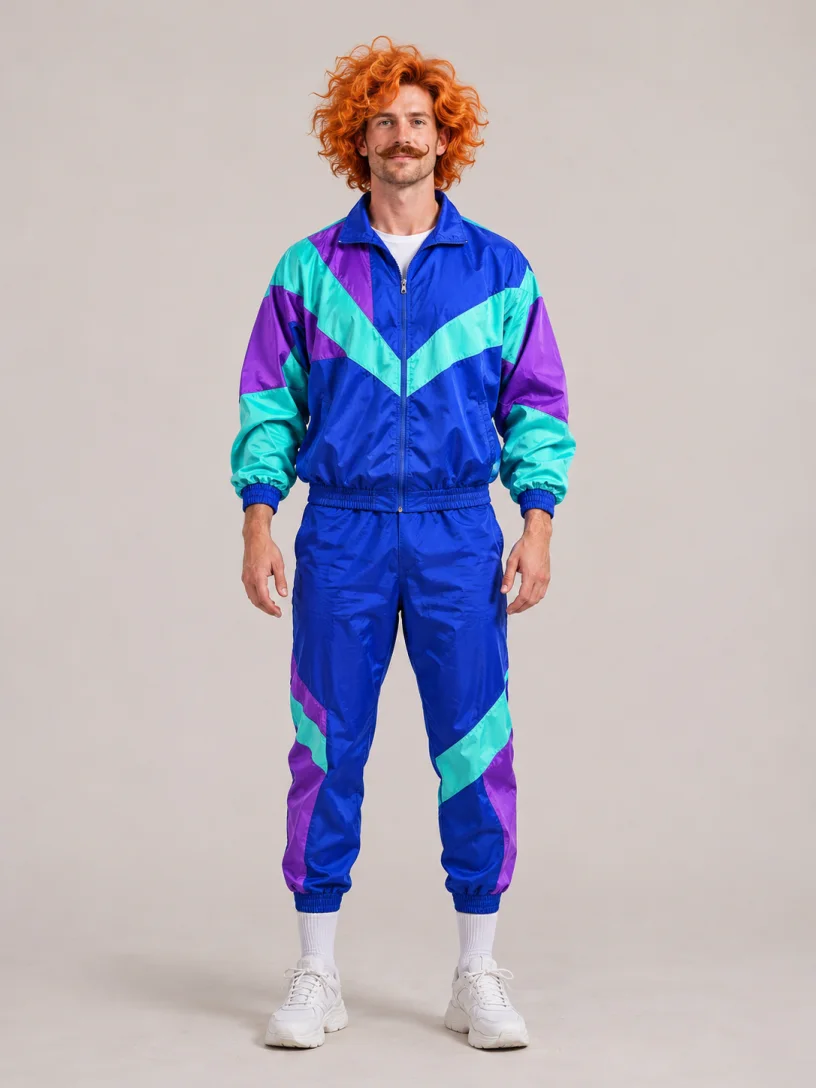
For a full-body motion transfer, show the face, hands and feet with space around the limbs.
Recommended
Avoid

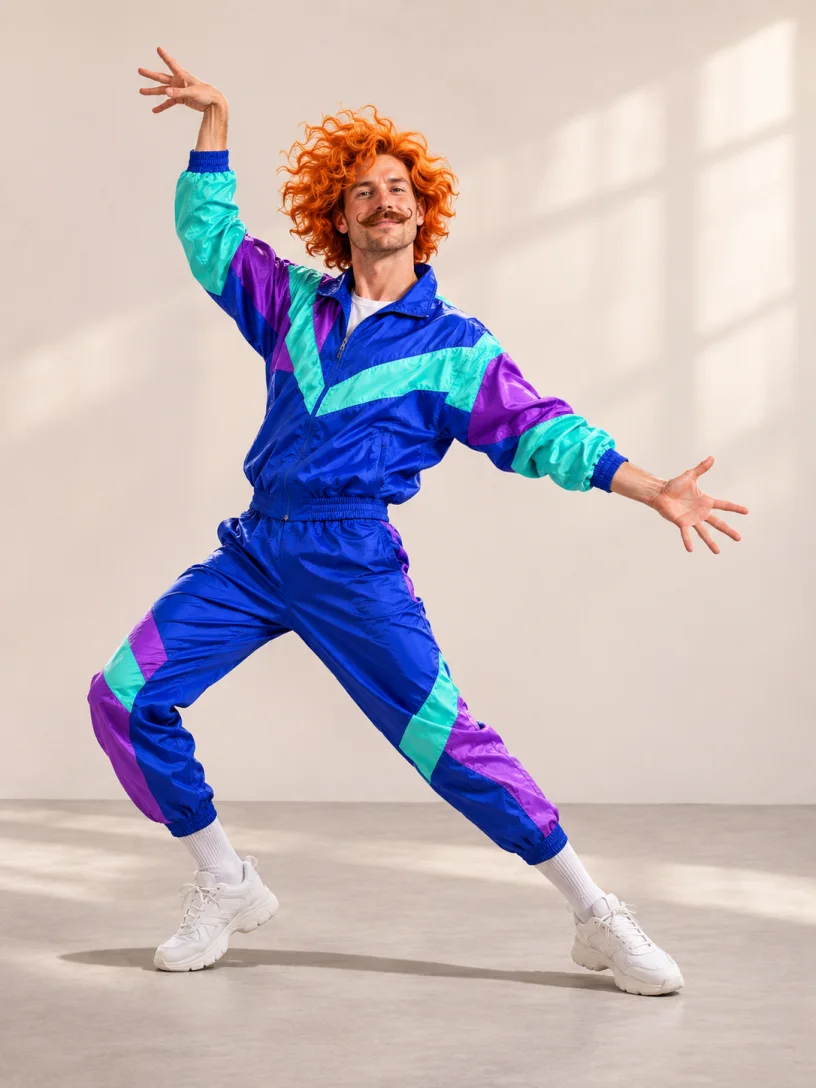
For motion transfer, choose a subject whose moving limbs stay visible throughout the clip.
Recommended
Avoid
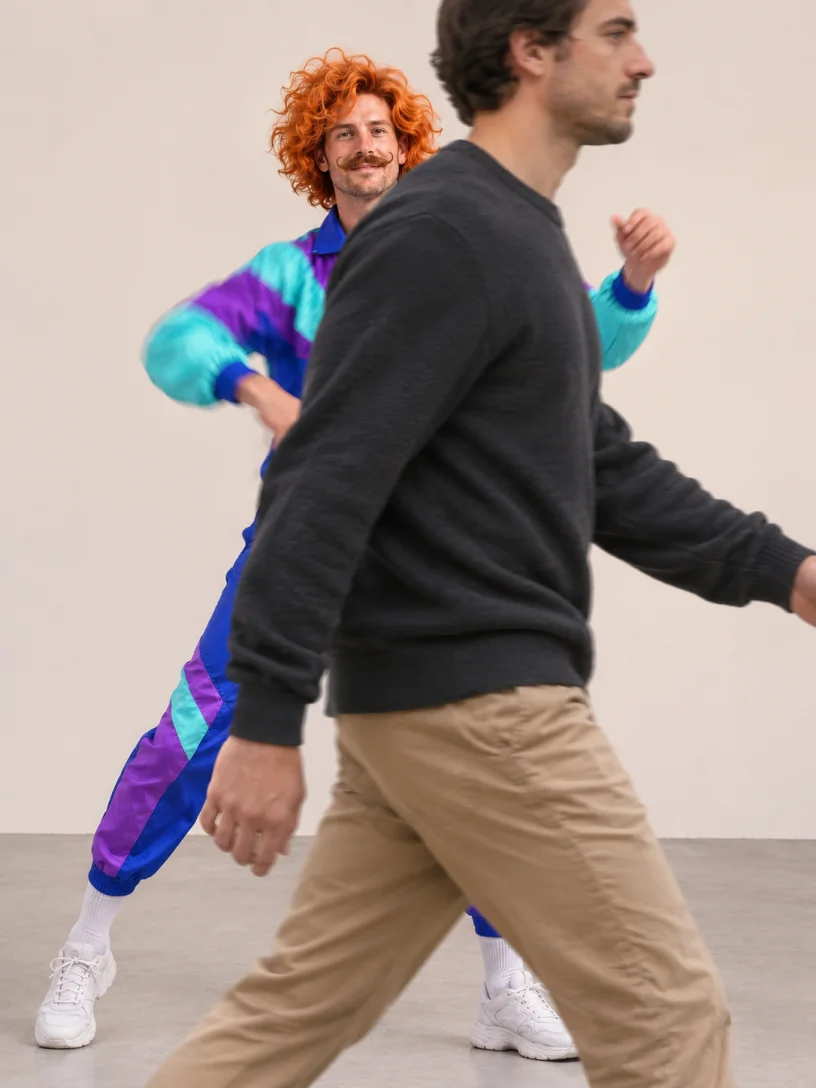
Preview motion transfer references from start to finish and trim unrelated footage.
One credit balance for images, videos and motion transfer.
For your first ideas.
$218.9 charged yearly
10,080 credits/year
Up to 1,680 images
Up to 560 videos
For a steady creative flow.
$410.9 charged yearly
21,600 credits/year
Up to 3,600 images
Up to 1,200 videos
For more creations, more often.
$593.4 charged yearly
43,800 credits/year
Up to 7,300 images
Up to 2,433 videos
Try before you subscribe
Prices in USD; taxes and total shown at checkout. Subscriptions renew automatically; cancel in Billing settings. Subscription credits expire each period; one-time credits never expire.
Refunds: request within 72 hours. Used purchased credits and applicable non-refundable processing costs (up to 6%) are deducted. Terms · Refund Policy
A practical guide to references, settings, credits and results.
Motion transfer uses a reference clip to guide an action. Image-to-video may use a prompt or other inputs, depending on the model.
Yes. Exit the selected template, then upload a supported video and character photos. File limits depend on the model.
The Motion video control shows the selected model’s range. Trim longer footage before uploading or use the workspace trim option when available.
Motion transfer templates show required roles and any optional ones. For your own clip, check the model’s image slots and limits.
Templates load a prepared setup. Prompt availability and requirements vary by model and mode when creating freely.
The credit estimate can vary with the model, duration and settings. Check it before submitting; pricing shows current plans and purchase availability.
Motion transfer results vary. Check the face, limbs and timing; a clearer clip or better-matched photo may help on another try.
Check the terms, applicable law, your media rights and model-specific restrictions before publishing.
Open My creations or account history to review and download completed videos.
Start with a short, clearly framed performance where the main subject stays visible. Watch the entire clip for turns, overlapping people and fast gestures. A simpler motion transfer video makes it easier to see which details in your photo need adjustment before trying a more complicated scene.
Choose a photo with the face and body parts needed for the action in view. For a prepared scene, read the role labels and add each requested subject in the corresponding slot. For a custom clip, check the selected model’s length and upload requirements. Review the estimate and your inputs in the motion transfer AI video generator before you generate.
Review the complete result rather than judging only the opening frame. Look at the face during turns, hands when they overlap and feet during full-body movement. If the character changes unexpectedly, try a clearer photo or a reference with less obstruction. Change one input at a time so you can compare the next version meaningfully.
A prepared performance can be a starting point for a character introduction, a playful group scene or a short dance. Select a template that supports the people or subjects you want to include. Use photos and reference footage you have permission to animate and check the applicable sharing and music rights before publishing.
Use a photo for your character and a video for the movement. Choose a template or upload your own clip.