How do I describe an AI image?
Begin with the subject, what it is doing and where it appears. Then add the view, lighting or visual style that matters to your AI image. A product brief might describe its shape and backdrop; a character brief can describe clothing and expression. Start with a few clear choices so you can assess the result.
Can I edit an existing image?
Supported AI image models accept image references. Add the image, describe the change you want, and mention which details should stay recognizable. Background, light and outfit can be adjusted separately when available. Compare the new AI image with your original, since small details may still vary.
What makes a useful visual reference?
Choose a clear picture that shows the character, object or composition you want to guide the AI image. The selected model determines the available reference slots and limits. Use media you have permission to work with, and describe the intended change instead of assuming that every detail will be preserved.
How do I choose the frame for an AI image?
Choose an available portrait, square or wide aspect ratio for the place where you intend to use the result. Leave space for a title or other elements when needed. If the AI image will become a video reference, include the body parts or objects involved in the intended movement.
What affects image size, count and cost?
The selected model determines the resolutions and image counts shown in the AI image form. Changing supported settings can change the credit estimate, so review it before submitting. A smaller first set can help you choose a direction before requesting more variations or a larger supported output.
Can I explore a product concept?
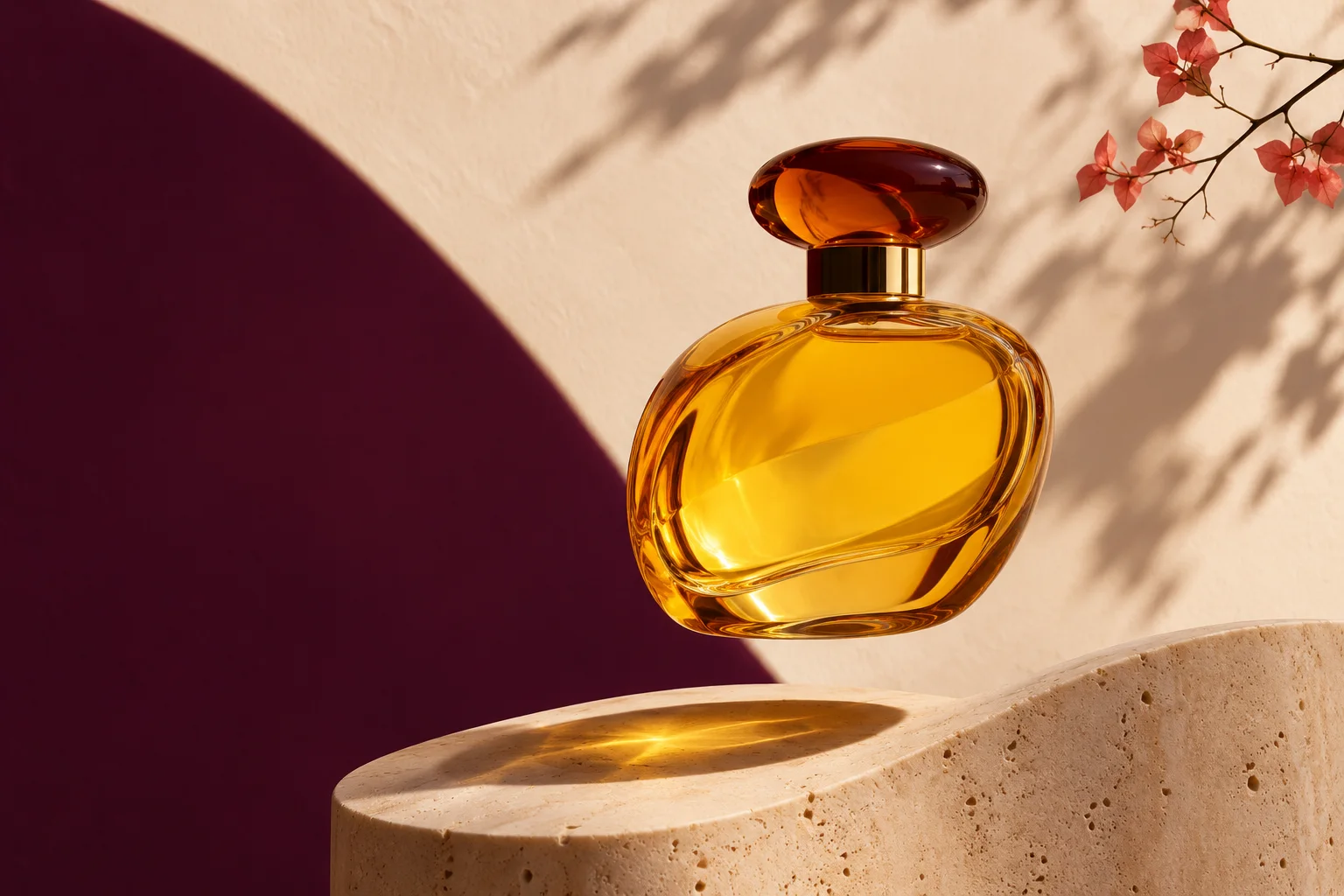
An AI image can help sketch a backdrop, surface or lighting direction around a product. Describe the object and use a supported reference when its appearance matters. Review labels, lettering, packaging and edges against the real product: generated details can change or be invented and may need further work.
Can I create a character for another scene?
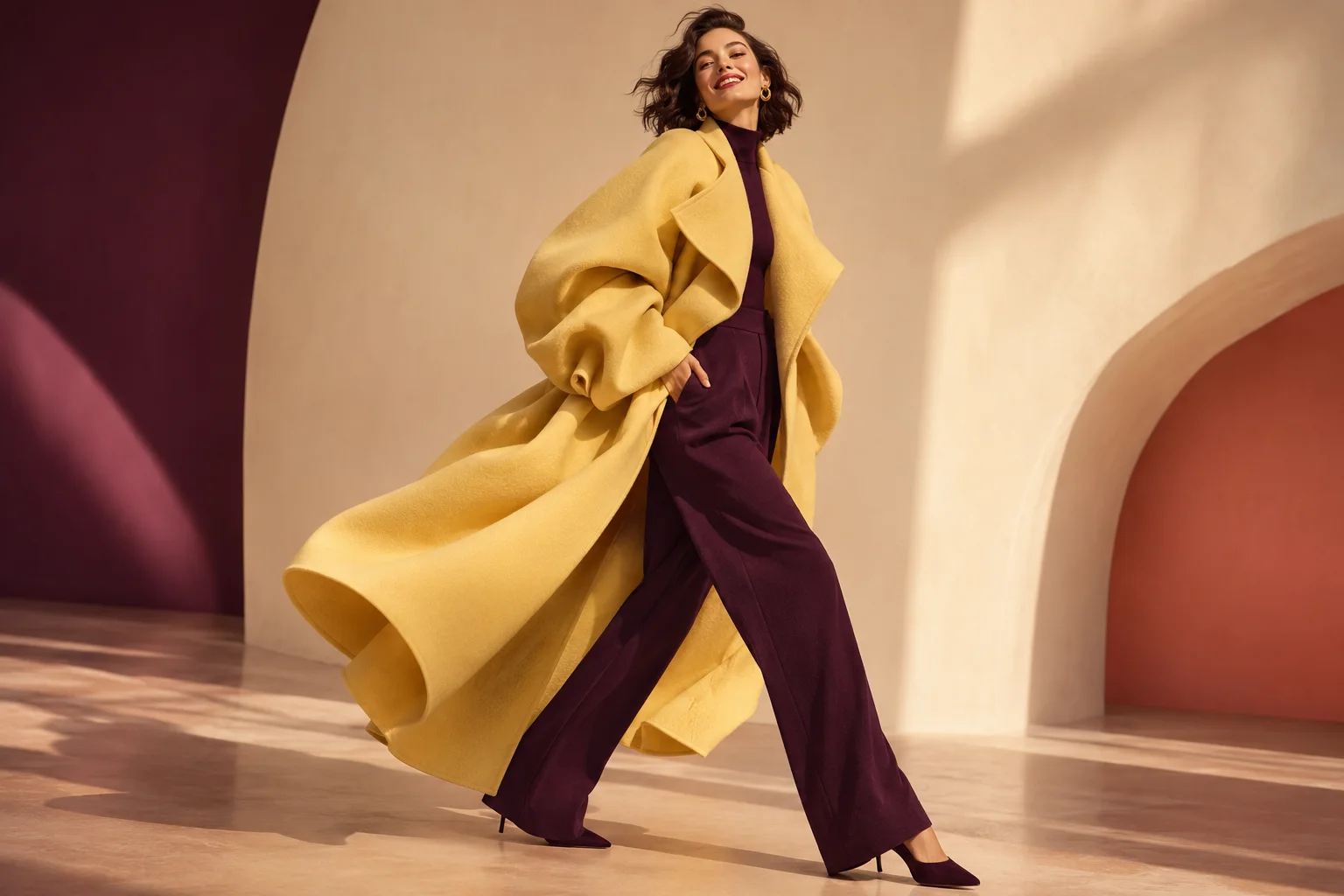
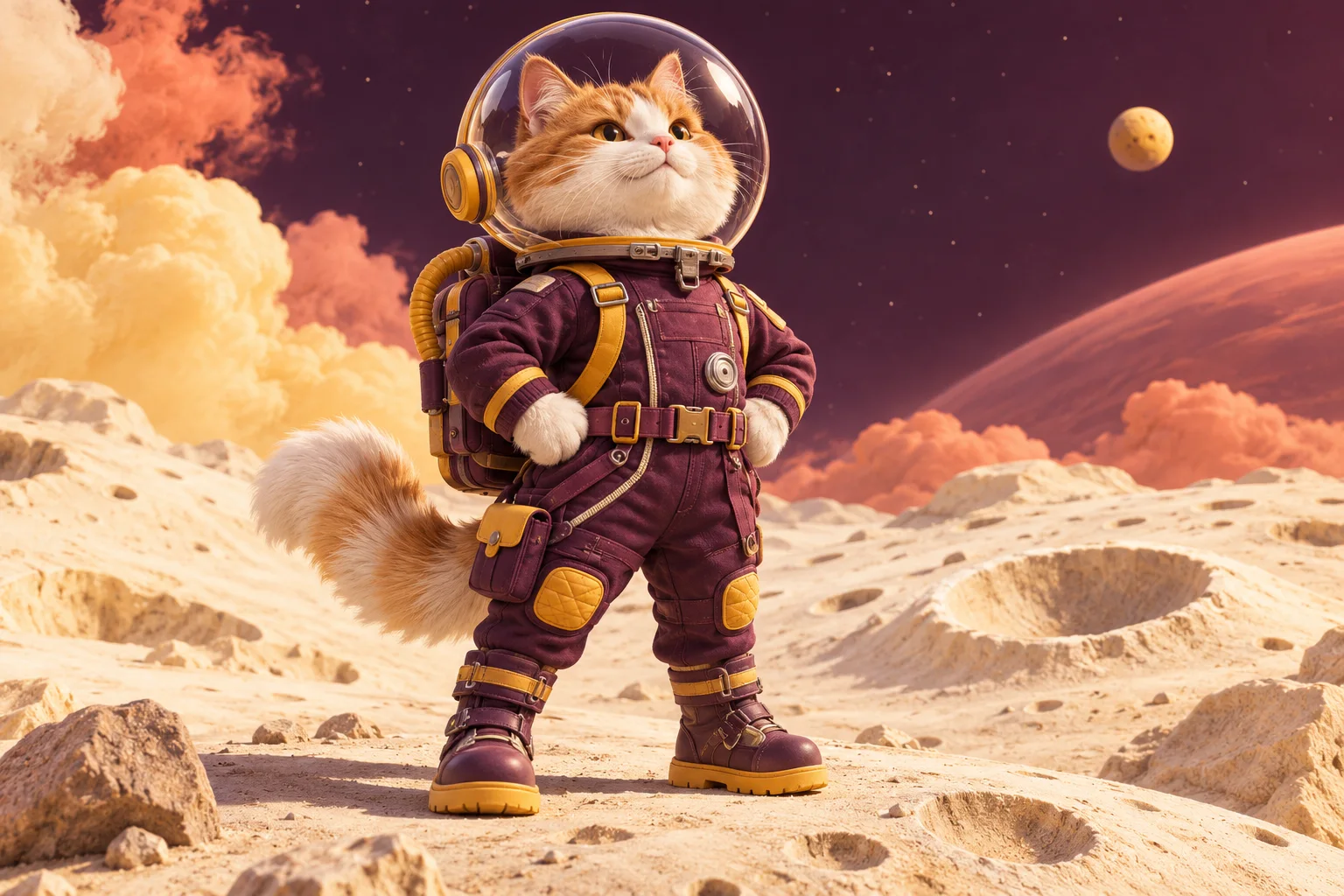
Describe the character’s appearance, expression, clothing and setting, then compare the AI image results. A compatible reference workflow can use a selected image as a starting point for another scene. Check the face and clothing each time, because the model can interpret those details differently.
Can I use an AI image in a video?
Yes, when the video model supports an image reference. Select a completed AI image from your account where that input is available, then review the model and any other required media. For motion transfer, choose a crop that shows the parts of the character involved in the action.
Why does my AI image differ from the brief?
Models can interpret prompts and references differently, especially when several changes compete. Identify the detail that matters most, simplify the description or use a clearer reference, and change one factor at a time. Compare the new AI image with the previous version and check the estimate before generating again.
What should I check before sharing an AI image?
Open the result at a comfortable size and inspect faces, fingers, object edges and any text; a thumbnail can hide inconsistencies. Find completed images in My creations or account history. Before publishing an AI image, check your rights to the references and the requirements of your intended use.