What can I use to start an AI video?
An AI video can begin with a written idea, a still image or other reference media, depending on the model. Select a model in the workspace to see its available inputs and modes. A written brief gives you room to invent a scene; a clear image can provide a more specific starting appearance for a subject or place.
How should I write an AI video prompt?
Begin an AI video prompt with the subject and its main action. Add where the scene takes place, then describe camera movement, lighting or atmosphere if those details matter. Keep the first version focused: several simultaneous actions can make a result harder to review. Compare the finished AI video with your brief before changing one instruction at a time.
What kind of image works as a video reference?
When the selected model supports image input, choose a clear picture that shows the parts expected to move. A close portrait may suit an upper-body scene, while a full-body action benefits from visible hands, feet and space around the subject. The AI video form shows the reference slots and limits for the selected model.
Can I use a motion clip?
Yes, with a model and mode that accept a reference video. Preview the clip from beginning to end and choose one where the action is easy to follow. You can also browse prepared motion templates on the homepage; each template loads its own reference and shows the photo roles it needs before you generate an AI video.
How do I choose the frame and length of an AI video?
Choose an available aspect ratio for the screen where you plan to use the result. A portrait frame fits a vertical screen, while a wider frame gives a scene more horizontal space. The available durations and resolutions depend on the model. When a shorter option is offered, it can help you review movement before trying a longer AI video.
Will my AI video include sound?
Sound depends on the selected model, mode and any template you use. Check the options in the workspace before submitting rather than assuming that every model includes audio. Listen to the completed AI video before sharing it, and check the rights to any music or other sound you provide or intend to use.
What controls the cost of an AI video?
The selected model and its supported settings can affect the credit estimate. Duration, resolution and other available choices may change the amount, so review the estimate in the form after adjusting them. Sign in to submit an AI video request and check your available balance. The pricing page shows the current plans and payment availability.
Why might an AI video look different from a preview?
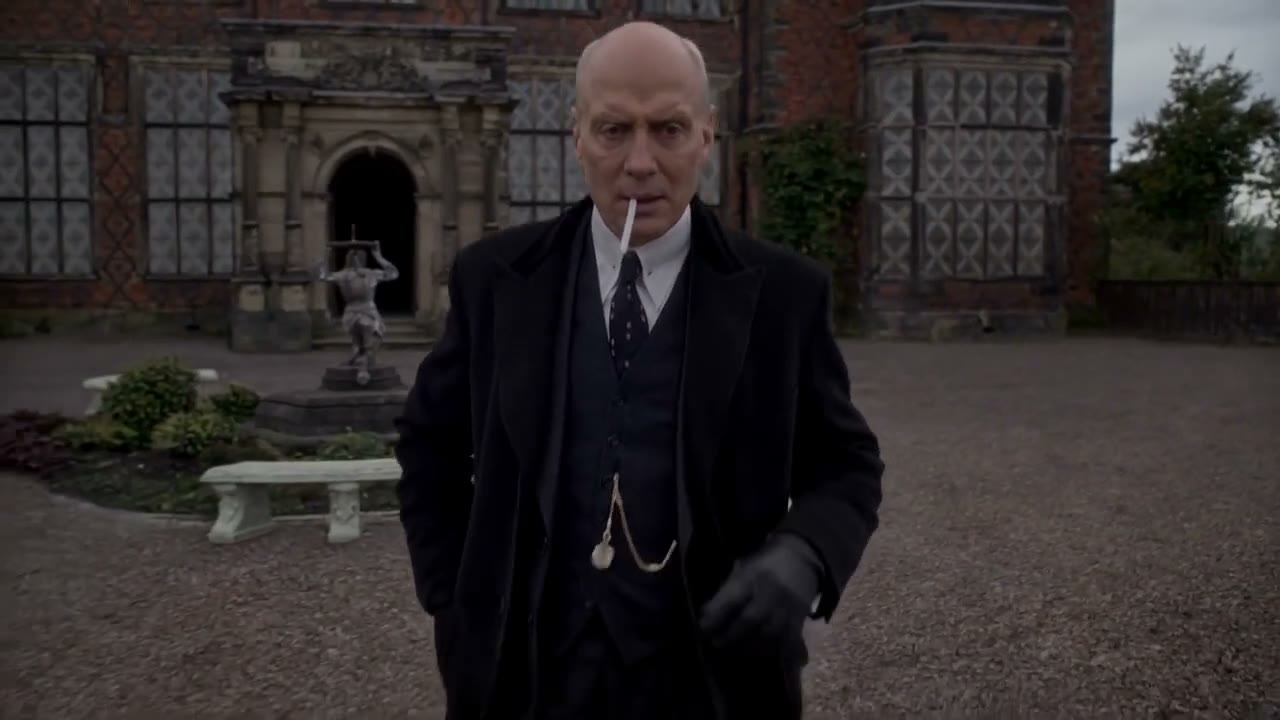
A preview illustrates a creative direction; the result depends on your inputs, model and settings. The examples on this page are community clips and were not generated with MT Video. Faces, clothing, object shapes and backgrounds can change as an AI video moves. Review the whole clip, including interactions and the final shot, before deciding what to keep.
How can I improve a video that looks wrong?
Identify one specific issue first. If an object changes shape, try a clearer reference or a simpler movement. If an AI video feels crowded, reduce the number of actions in the prompt. Keep the earlier result for comparison, change one input or setting, and check the updated credit estimate before submitting another generation.
Where do I find and download my completed videos?
Open My creations in the workspace to review your results, or use View all to return to your account history. Play the complete AI video and check faces, hands, moving objects and sound when available. You can download a completed result from the available actions and compare versions before choosing one to use.
Can I share an AI video?
Before sharing an AI video, review the output and make sure you have permission to use the people, images, footage and audio in your inputs. Music and third-party assets can have their own conditions, and the destination platform may have additional rules. Check the applicable terms and any requirements for your intended use.