Create a video

Required photos1
Settings
Mode
Video length27s
Resolution

Goodbye GTA 5 Highway AI Video Generator

Use one photo for the convertible driver in Goodbye GTA 5 Highway AI and follow a sunset road farewell.

0:00 / —:—

Discover Goodbye GTA 5 Highway AI

Goodbye GTA 5 Highway AI places one uploaded subject in a prepared visual sequence. It is a fictional road-trip goodbye for a friend or a game-inspired memory edit. The template supplies the action, scene and camera changes; your image guides the driver. Generated results can vary in likeness and details, so use the preview to decide whether the scene fits your idea.

A driver waves to other travelers on a desert highway

Make a Goodbye GTA 5 Highway AI video in three steps

Set the Goodbye GTA 5 Highway AI cast, choose a mode and examine the finished video.

  1. STEP 1

    Supply a picture

    Choose one permitted photo for the driver slot. Keep the person clearly visible and verify the input before moving on.

  2. STEP 2

    Select a mode

    Compare the shorter selection with the full reference. Check the duration, available resolution and credit estimate in the workspace.

  3. STEP 3

    Create and play

    Submit after signing in. Open My creations when the job finishes, play the full video and listen to its audio.

Explore the Goodbye GTA 5 Highway AI sequence

The reference sets the scene; your image supplies one featured subject.

The visual beats in Goodbye GTA 5 Highway AI

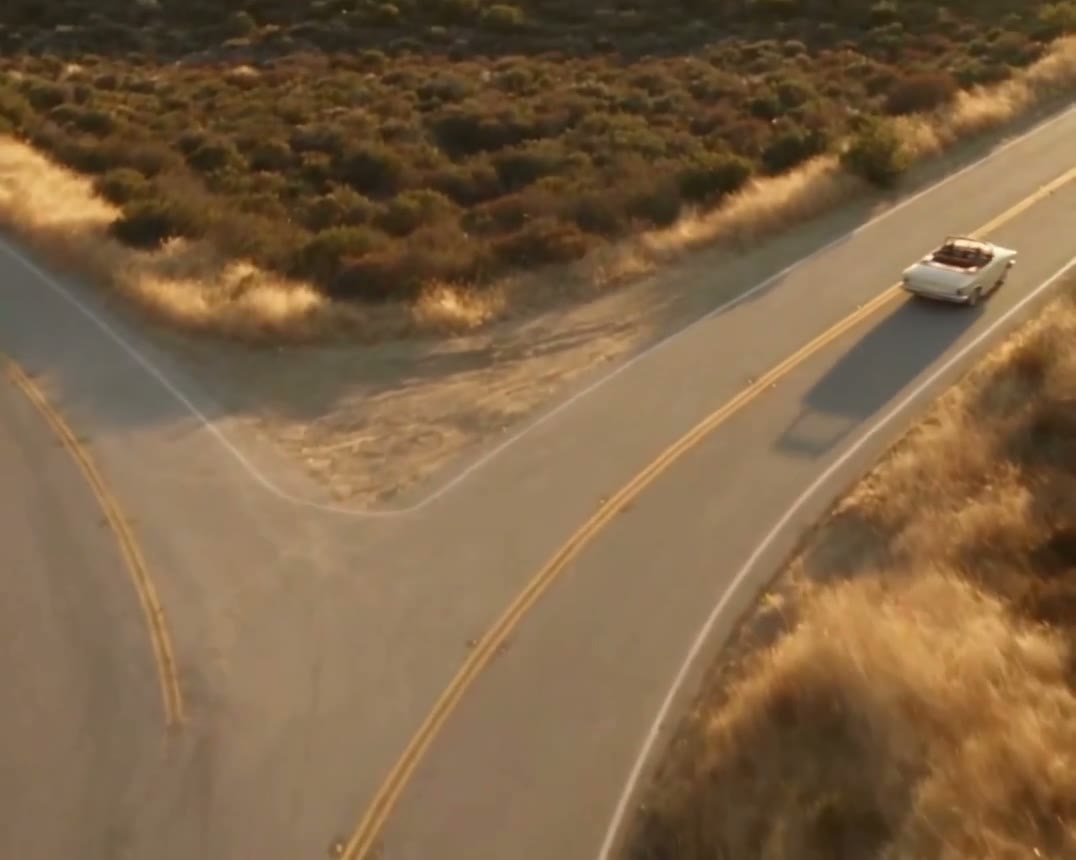
Watch how Goodbye GTA 5 Highway AI moves between moments. A white convertible travels alongside other cars and a motorcyclist. The people exchange waves, and the full scene finishes with the convertible driving away in a wide road view. The cuts and positions come from the supplied reference. You can choose the person who fills the available role, while the source remains responsible for the surrounding story and pacing.
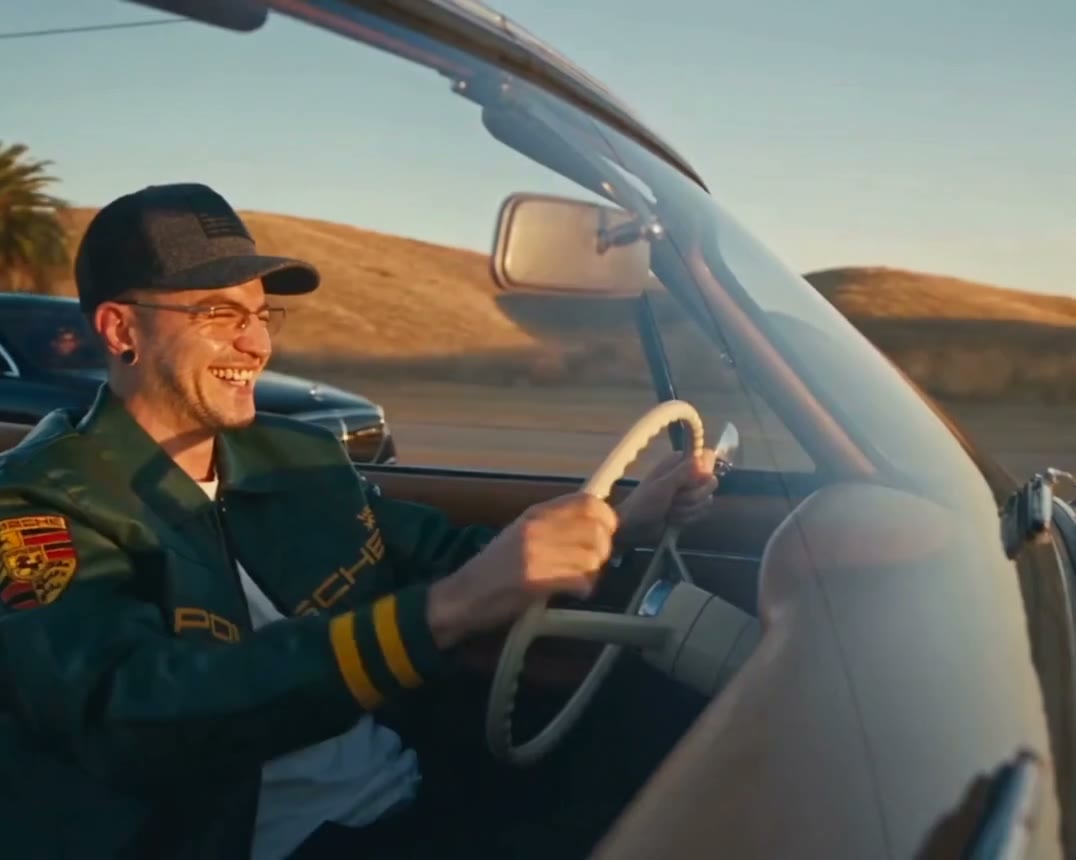
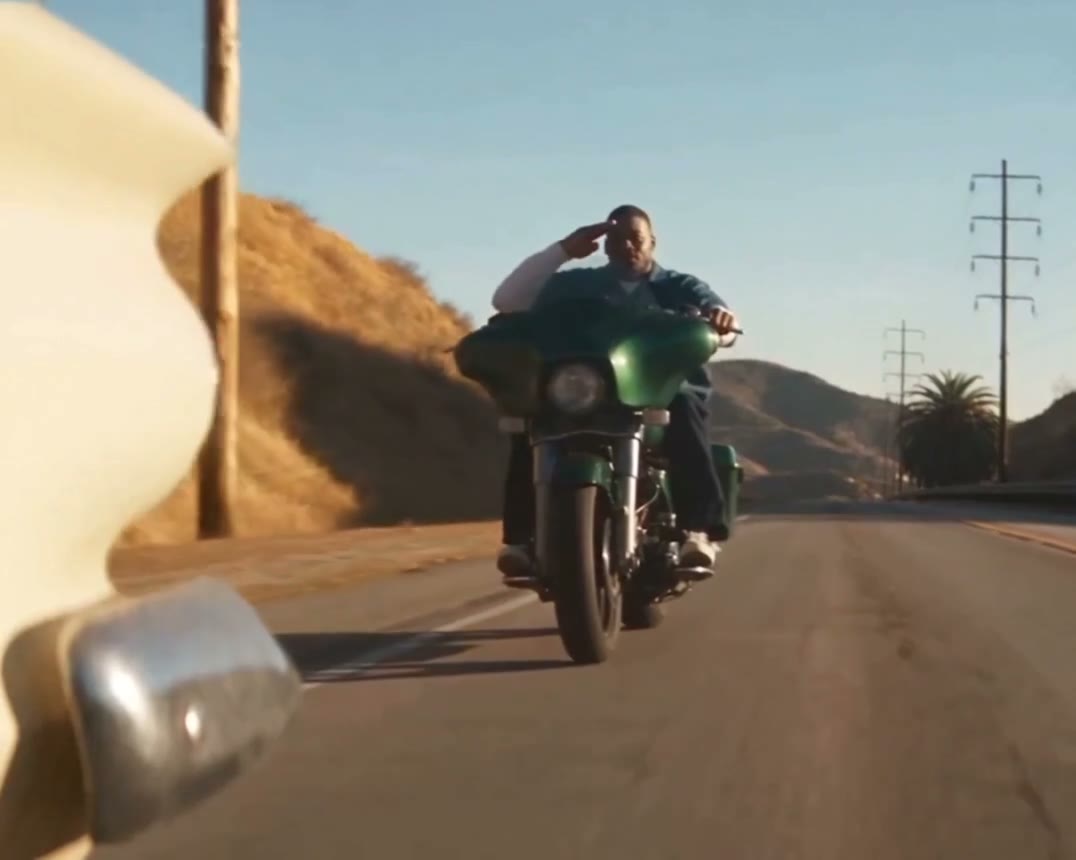
The visual beats in Goodbye GTA 5 Highway AI

Select the Goodbye GTA 5 Highway AI subject

To prepare Goodbye GTA 5 Highway AI, pick a clear image showing one person’s face and hair, with the upper body visible where possible. A single clear subject is easier to identify than a group photograph. Avoid very small faces, strong blur or objects covering distinguishing features. Framing that includes hair and some clothing gives the model more context as the camera angle changes.

A driver waves to other travelers on a desert highway

Match the Goodbye GTA 5 Highway AI length to your edit

The trimmed source runs approximately 26.5 seconds. The shorter selection uses the opening road exchange and stops before the last wide drive-away. In Goodbye GTA 5 Highway AI, the two shorter choices use the same selected part of the reference, while Original follows the complete source. Compare the preview and the duration shown in the workspace before starting, especially when the final moment matters to your story.

Match the Goodbye GTA 5 Highway AI length to your edit

Know what Goodbye GTA 5 Highway AI can change

The convertible, rider, other vehicles, sunset road and camera cuts follow the prepared footage. In Goodbye GTA 5 Highway AI, the uploaded image guides the driver; the remaining actions, props and locations are tied to the reference. There is no separate field for selecting the timing of a cut or directing another character. Consider another tool if you need to stage an entirely different sequence.

Know what Goodbye GTA 5 Highway AI can change

Review a completed Goodbye GTA 5 Highway AI clip

Check the driver across close and wider angles, along with waving hands and the continuity of the vehicle. When watching your Goodbye GTA 5 Highway AI result, pay attention to changes around faces, hands, clothing and moving objects. Examine the transition between shots and check any text that appears in the scene. The audio restoration is attempted after generation, so play the file with sound before deciding it is ready to use. Choose the airport page if you need a terminal departure instead of a road sequence.

A driver waves to other travelers on a desert highway

Goodbye GTA 5 Highway AI FAQ

Answers about the source, role, timing and result.

What should I upload for Goodbye GTA 5 Highway AI?

Add one authorized picture of the driver. The fixed video is already provided in the workspace. Choose a photo where the person can be recognized, and keep a copy of it in case you want to compare a later attempt.

Who appears as my photo in Goodbye GTA 5 Highway AI?

Your image guides only the white-convertible driver. The rider and other motorists are part of the fixed performance.

Can Goodbye GTA 5 Highway AI use a different background?

The convertible, rider, other vehicles, sunset road and camera cuts follow the prepared footage. This page does not include a control for choosing another location or individually editing the scenery.

Which Goodbye GTA 5 Highway AI mode is shorter?

Economy and Standard follow roughly the first 15 seconds of the highway sequence. Economy and Standard use this selected segment with different generation settings. Consult the duration and estimate shown in the workspace for the mode you choose.

How much of Goodbye GTA 5 Highway AI does Original follow?

Original uses the full trimmed reference and includes the wide shot at the end. The source controls the sequence, and the final duration or details may differ slightly when a video is generated.

Can I choose another role in Goodbye GTA 5 Highway AI?

The available slot is assigned to the driver. Other characters or objects are part of the prepared scene and are not individually replaceable through extra photo fields on this page.

Is Goodbye GTA 5 Highway AI guaranteed to match the input photo?

No generative result is guaranteed to preserve every face or outfit detail. A clear subject and unobstructed face provide useful information, but movement, cuts and overlapping objects can still change the appearance.

Does Goodbye GTA 5 Highway AI include a soundtrack?

The reference contains sound, and delivery is configured to restore the selected reference audio. Listen to the completed file before sharing; there is no separate music or voice-generation setting in this template.

How do I inspect a Goodbye GTA 5 Highway AI video?

Check the driver across close and wider angles, along with waving hands and the continuity of the vehicle. Play from the first shot through the ending, because a single poster frame cannot show whether the subject remains recognizable during a cut.

How much does Goodbye GTA 5 Highway AI cost?

The workspace displays a credit estimate for the selected mode and available settings before submission. Sign in and check your balance and the displayed estimate before starting a generation.

Is Goodbye GTA 5 Highway AI an official game release?

This is an independent AI-made video experience with a fictional game-inspired scene. It is not an interactive game and does not imply endorsement by a game publisher.

May I share a Goodbye GTA 5 Highway AI result?

Use media you have permission to upload and obtain any necessary consent from identifiable people. Check the rights to the soundtrack and the rules of the destination where you plan to post the finished video.

Start Goodbye GTA 5 Highway AI

Add a photo for the driver and compare the available modes.

A driver waves to other travelers on a desert highway